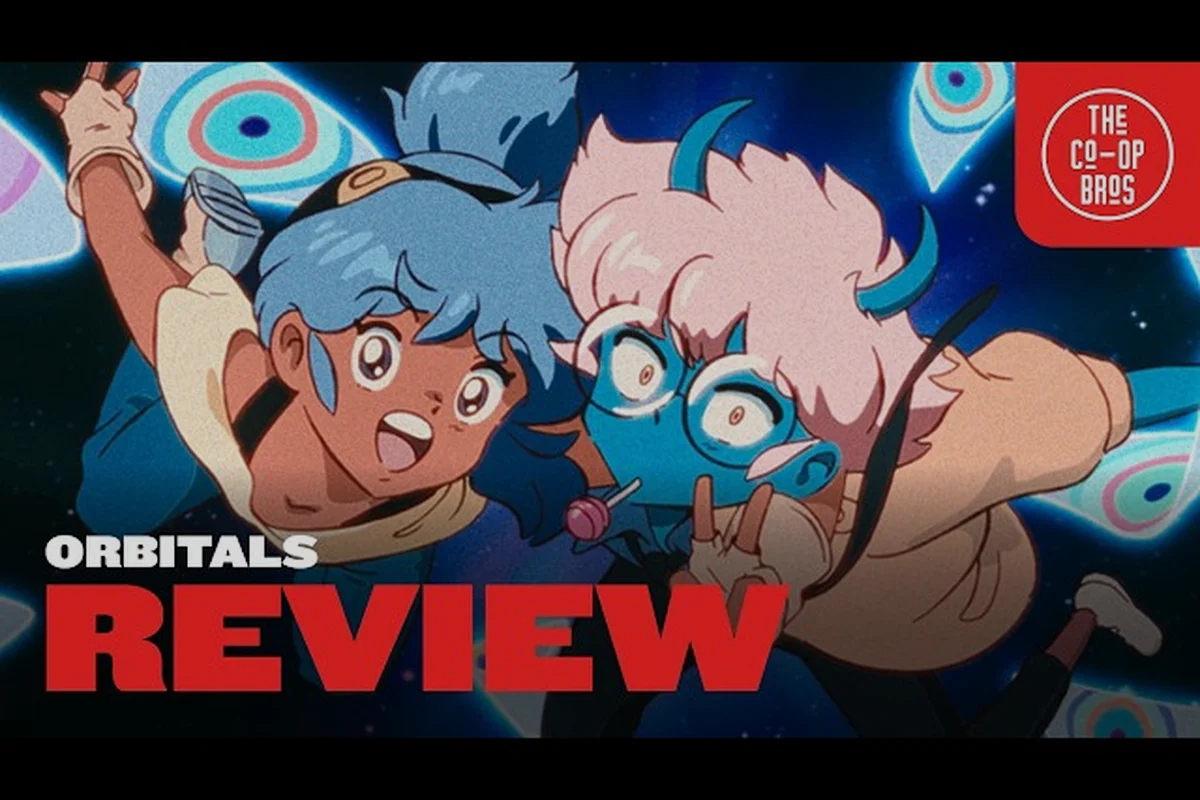
Getting Orbitals split screen right before launch day matters because the puzzle-adventure from Shapefarm is built around two players leaning into the same couch, not two headsets in different rooms. The Nintendo Switch 2 version launches on September 3, 2026, and the eShop listing confirms the title ships as a 2-player co-op experience where Maki and Omura have to coordinate tools, gadgets, and timing to outrun the Storm Wall. Because every level leans on asymmetrical roles, having the right couch setup — controllers, screen layout, audio balance, and GameShare flow — is the difference between a smooth first session and ten minutes of cable-swapping before you even reach the first puzzle gate.
This guide walks through how Orbitals split screen works on Switch 2, how the Global Friend Pass unlocks a second player without buying a second copy, and the controller and display settings that make asymmetric puzzle solving feel natural on a shared screen. If you are still deciding whether to grab the title, the Orbitals for Nintendo Switch 2 eShop listing is the cleanest reference for the September 3 street date and the $39.99 price point.
How Orbitals Split Screen Works on Switch 2
Orbitals split screen is the local-couch mode built into the base game, not a bolted-on feature. According to the Orbitals publisher page on Kepler Interactive, the title is pitched as a "2-player co-op puzzle adventure" whose designers insist that progress demands brains, heart, and unyielding resolve — the trio of qualities that "open the path forward." That design intent shows up immediately in how the camera behaves: instead of cloning the same view for both players, the screen splits into two windows that each follow one explorer's perspective, with shared puzzle elements bridging the gap.
What the Camera Actually Does
The default Orbitals split screen layout uses a vertical split on Switch 2 in handheld mode and a horizontal split when the console is docked. Player one tracks Maki on the left, while player two follows Omura on the right, and the dividing line is dynamic — it slides to give whichever player is performing the active interaction more room to breathe. When both players trigger simultaneous actions, the screen briefly merges into a single shared view for the puzzle beat, then re-splits once the action resolves.
This matters because the gameplay is asymmetrical: one player is usually reading the environment while the other manipulates a tool, and the camera has to keep both roles legible at once. If you are new to the asymmetric co-op flow, our Orbitals online co-op guide covers how the same roles translate to remote play.
Local Versus Online GameShare
Orbitals split screen is the local GameShare path, and it is the only couch mode in the game. The Global Friend Pass — covered in detail below — is the online equivalent: a second player on a second Switch 2 console joins the host over the internet using a free companion app. Nintendo's GameShare branding is the umbrella term that ties both routes together, and the official Orbitals website lists GameShare, the Global Friend Pass, and the local co-op demo side by side under the Ways to Play section.
| Mode | Number of Switch 2 consoles | Connection | Cost for player two |
|---|---|---|---|
| Orbitals split screen (local) | 1 | Direct cable to TV / handheld | No extra purchase |
| Global Friend Pass (online GameShare) | 2 | Internet | Free companion app |
| Standard online co-op | 2 | Nintendo Switch Online | Full copy of the game |
The key takeaway: Orbitals split screen costs nothing extra for the second player because the second Joy-Con pair is already part of the Switch 2 package. Online GameShare, by contrast, requires a second console running the free Global Friend Pass app.
Setting Up Two Controllers for Couch Play
The Switch 2 ships with two Joy-Con 2 controllers in the box, which is exactly what Orbitals split screen expects. You do not need a Pro Controller, a second pair of Joy-Cons, or any third-party pad to launch couch co-op — but the way you pair and orient the controllers does affect how comfortable the puzzle inputs feel over a long session.
Pairing the Default Joy-Con 2 Pair
Slide each Joy-Con 2 off the console rail, press the small pairing button on the rail until the LED pulses, then press the same button on each controller. The Switch 2 system will register both pads as a single pair automatically, and Orbitals will detect them on the title screen the moment you select "2-Player Co-op." According to community previews cited in the Orbitals Wikipedia entry, the game does not require any controller assignment step — the first player to press A takes Maki, the second takes Omura.
When a Pro Controller Helps
For longer sessions — especially chapters where one player is solving a multi-step gadget puzzle while the other holds a position — many players in the community reported preferring a Pro Controller for the "anchor" role and the Joy-Con 2 for the "mover." The Joy-Con 2's smaller stick range is fine for the dashing and grappling inputs that Maki's role demands, while the Pro Controller's larger grip reduces fatigue when Omura spends a minute lining up a beam or trigger. There is no in-game performance difference, only an ergonomic one.
| Controller | Best role | Reason |
|---|---|---|
| Joy-Con 2 (left) | Maki (mover) | Compact stick range suits quick dashing |
| Joy-Con 2 (right) | Maki or Omura | Default pad, easy to hand off |
| Pro Controller | Omura (anchor) | Larger grip helps during long puzzle holds |
| Dual Joy-Con grip | Either | Best for players who prefer full-size sticks |
If you want the second player to be able to drop in mid-session, the global friend pass mechanic covered in our Orbitals how to get friend pass guide explains the steps on the online side, but for couch play the drop-in is even simpler — the second player just taps A on the second controller at any time.
The Global Friend Pass and How It Connects to Couch Play
The Global Friend Pass is a free companion app, not a second copy of Orbitals, and it is the bridge between the local split-screen experience and the online GameShare flow. The two share the same asymmetrical design, the same puzzle gates, and the same chapter progression — only the connection layer changes.
What the Friend Pass Actually Unlocks
According to the official site, the Global Friend Pass lets a second player join the host on a separate Switch 2 console over the internet, with the host's machine running the full game and the remote machine running only the free app. The pass is region-agnostic, which is why it carries the "Global" label, and it carries no time limit during the launch window. If you have ever wondered how the same puzzle co-op works without a second purchase, the Orbitals single copy two players breakdown walks through the legal and technical details.
Why the Pass Matters for Split-Screen Households
Even if you plan to play couch-only, install the Global Friend Pass on a second Switch 2 in the same household anyway. Two reasons make this worth the five minutes: first, it acts as a save backup if the host's console is offline, because the pass syncs chapter progress for player two; second, it lets one player leave the couch and keep playing from another room without ending the session. The host stays on the TV, the remote player continues on the second console, and the screen layout transitions from Orbitals split screen to a single full screen automatically once the second player leaves the room.
| Feature | Local split screen | Online GameShare via Friend Pass |
|---|---|---|
| Number of consoles | 1 | 2 |
| Internet required | No | Yes |
| Cost for player two | Free | Free |
| Screen layout | Split (vertical or horizontal) | Single full screen on host |
| Best for | Same-room couch play | Distance or separate-room play |
For a deeper comparison of the two routes, our Orbitals online play explained guide covers which one to pick based on your living-room setup — the Orbitals local split screen path keeps both players on one Switch 2 with zero bandwidth use, while the Orbitals local gameshare route via the Global Friend Pass splits the session across two consoles but drops the Orbitals split screen layout the moment player two logs in remotely, giving the host a clean full-screen view.
Controller Tips That Actually Help in Orbitals
Because Orbitals split screen hands each player a different role, generic "use the sticks" advice does not help. The inputs that matter are the ones tied to each role's core verbs — dashing for Maki, anchoring for Omura — and a few small habits make the first hour feel much smoother.
Dashing and Grappling With Maki
Maki's role is built around movement: dashing between cover points, grappling to ledges, and timing sprints through environmental hazards. The trick, reported by players in early previews, is to keep the left Joy-Con 2 stick tilted slightly in the direction of travel a half-second before the dash input, because the game's animation buffer treats that lean as a committed direction. If you tap dash from neutral, the game picks the most recent stick angle, which can waste a frame on a wrong-way dodge.
Holding and Triggering With Omura
Omura's role is built around holding positions and triggering puzzle events. Two controller habits make this role less frustrating. First, map the trigger hold to a shoulder button rather than a face button — the analog shoulder inputs let you ease into a hold instead of slamming a digital press, which the game registers as a smoother "wind up." Second, keep the right stick lightly pressed even when you are not actively aiming, because some of Omura's gadgets use a passive aim assist that only activates when the stick is held off-center.
Communication Headsets
The Switch 2 supports USB-C and Bluetooth headsets, and for Orbitals split screen a single open-ear speaker or a low-volume TV setup usually works better than isolating headphones. The reason is that the game broadcasts audio cues — approaching hazards, solved puzzles, failed interactions — through the TV, and you want both players to hear them. If one player wears closed-back headphones, they miss the environmental tells and end up calling out the same warning the audio just gave.
| Input | Role | Tip |
|---|---|---|
| Dash + grapple | Maki | Tilt stick a half-second before pressing |
| Hold + trigger | Omura | Use shoulder analog for smooth wind-up |
| Passive aim | Omura | Keep right stick lightly off-center |
| Drop-in / drop-out | Either | Tap A on the second controller any time |
| Audio cues | Both | Prefer open-ear audio over isolating headphones |
If you want the full mechanics primer before launch, our Orbitals friend pass explained guide breaks down the communication patterns that carry over from couch to online play, including the drop-in prompt timing, the controller-2 join handshake, and how the global friend pass lobby surfaces hosts across regions. That page is the most useful companion read for anyone still deciding between orbitals local split screen, orbitals local gameshare on the same Switch 2, and orbitals online gameshare through the friend pass system.
Troubleshooting Orbitals Split Screen Before Launch
A few setup hiccups already show up in community reports from the demo period, and they are easy to clear before the September 3 launch. None of them are blockers — most come down to display mode, controller firmware, or audio routing.
Display Mode and Resolution
The Switch 2 outputs Orbitals at 4K when docked and 1080p in handheld, and the split-screen frame rate is locked to 30 fps in both modes to keep the two camera windows in sync. If you see one window stutter, the cause is almost always the TV's motion-smoothing setting, not the game. Disable any "Game Mode" or "Motion Interpolation" feature on the TV, and the stutter usually clears up immediately.
Joy-Con 2 Drift
Stick drift is the most common controller complaint on Switch hardware, and Joy-Con 2 is no exception. Because Orbitals split screen depends on precise stick inputs for the dash and grapple timings, even a small drift can cause Maki to slide off ledges. Recalibrate the sticks from the Switch 2 system menu before launching the game, and if drift persists, the controller is still under warranty through Nintendo's standard Joy-Con replacement program.
Fixing TV Audio in Couch Co-op
If the TV audio drops to stereo when you start couch co-op, the cause is the Switch 2 automatically switching to a 2-channel output because the game uses positional audio for puzzle cues. Force the output back to surround in the system audio settings if your home theater supports it — the game mixes correctly in both modes, but the TV may be the one downgrading the signal.
| Issue | Likely cause | Fix |
|---|---|---|
| One window stutters | TV motion smoothing | Disable Game Mode on the TV |
| Maki slides off ledges | Joy-Con 2 stick drift | Recalibrate sticks from system menu |
| Audio drops to stereo | Switch 2 auto-switches to 2-channel | Force surround in system audio settings |
| Second controller not detected | Pairing not completed | Re-pair both Joy-Con 2 from the system menu |
| Screen split direction feels wrong | Default layout mismatch | Toggle split orientation in the in-game options |
Most of these fixes take less than a minute and only need to be done once — disabling TV Game Mode, recalibrating Joy-Con 2 sticks from the system menu, and forcing surround output are all one-tap toggles that persist across sessions. After that, Orbitals split screen settles into the same smooth rhythm that the asymmetrical puzzle design was built around, with both players receiving their individual audio channels and full gyro stick precision during co-op runs.
Frequently Asked Questions
Does Orbitals split screen need a second copy of the game?
No. Orbitals split screen is a couch mode built into the single Switch 2 copy. The second player uses the second Joy-Con 2 in the box, and no extra purchase is required. The Global Friend Pass is only needed if the second player wants to join from a separate console over the internet.
Can I play Orbitals split screen in handheld mode?
Yes. The game supports vertical split screen on the Switch 2's built-in display, with each player getting roughly half of the 1080p panel. The frame rate stays at 30 fps to keep the two camera windows in sync, and the Joy-Con 2 rail controllers work without any extra pairing step.
What is the difference between Orbitals local gameshare and online gameshare?
Local GameShare is the same as Orbitals split screen — one console, two controllers, one TV or handheld screen. Online GameShare uses the Global Friend Pass app on a second Switch 2 over the internet, with the host running the full game and the remote player running only the free pass. The puzzle design and asymmetrical roles are identical between the two.
Do I need Nintendo Switch Online for couch co-op?
No. Nintendo Switch Online is only required for the standard online co-op mode where both players own a full copy of the game. Orbitals split screen and the Global Friend Pass both work without an NSO subscription, because the local and GameShare routes do not use Nintendo's online matchmaking layer.
Will the Global Friend Pass work across regions?
Yes. The "Global" label on the Friend Pass refers to cross-region support, not a worldwide launch restriction. A host in North America can GameShare with a second player in Europe or Japan using the same free companion app, as long as both Switch 2 consoles are connected to the internet.